Are you an online business?
If you are, ask yourself one question…Is your website accessible?
Accessibility is a word that you might be familiar with, but all too often its associated with car parking spaces and wheelchair ramps. When in reality accessibility is so much more than that. Today I wanted to discuss how you can make your business website accessible for your disabled customers.
I’m a disabled blogger and disability advocate. I’ve made it my life’s ambition to make the world both online and offline a more accessible place. I’m severely sight impaired myself. So it’s safe to say I know what it’s like to not be able to access a website because of inaccessibility. It’s frustrating, it’s disheartening and often it makes me reluctant to give a brand my custom.
But I’m not the only one who feels this way. So today I wanted to share some guidance on how you can improve the accessibility of your website.
What Is Accessibility?
Accessibility essentially means to make a service as usable to as many people as possible. This is particularly important for disabled people. Accessibility means to accommodate as many different needs as possible. We’re not just talking physical disabilities, but also sensory, cognitive, and mental disabilities. This could mean adding captions to a video for deaf people or adding an image description for people with visual impairments.
Why Is Accessibility Important?
Disabled people make up 15% of the world’s population and as disability can come with age, this amount will probably increase over time.
Not only that, but disabled people also have a huge amount of spending power. According to the charity Purple disabled people and their families in the UK alone are estimated to have a combined spending power of £274 billion each year. This amount is estimated to increase by 14% every year. However, cases of inaccessibility mean that often businesses lose out on this custom. Estimates suggest that 4.3 million disabled shoppers click away from a website because it is not accessible.
This needs to change.
Disability is a huge spectrum and different disabilities have different kinds of access needs. Taking this into consideration, how do you make a website accessible? What are some of the key things to think about?
There’s a saying in the disability community “nothing about us without us”. What this means is that if you are in doubt, just ask. The best way to improve accessibility for disabled people is to ask them. Ask for feedback, offer feedback forms, be proactive on social media, have accessibility audits and generally just be open to constructive criticism. Every disability is different and the only way companies can improve is to listen to what disabled people have to say.
Having said that, today I have a few key pointers when it comes to making your website more accessible to get you started.
Make the Navigation Menu Easy to Find
One mistake that I often see made by websites is when the navigation menu isn’t distinctive or placed where it can be easily found. Make sure that your navigation menu is placed at the top of the webpage so that it’s the first thing you see. Also ensure that it has text clearly signposting it as “Menu.” This is specifically useful for people with visual impairments, as well as those with cognitive disabilities.
Make Sure Your Website is Navigable Using Only a Keyboard
Not everyone is able to use a mouse or a trackpad and instead have to use keyboard shortcuts. This can be for a variety of reasons including physical disabilities and those who use VoiceOver or a Screen Reader. Ensure that your website is navigable using keyboard shortcuts, particularly the “tab” button. Make sure the tab order corresponds to the visual order and that the content flows in a comprehensible way. Add a link at the top of every page which allows the user to skip to the main menu or homepage if they need to.
Add (Alternative (ALT) Text to Images
Adding ALT text to images is particularly useful for those with visual impairments who use VoiceOver or a screen reader. VoiceOver is a piece of software that enables visually impaired people to interact with their technology using haptic gestures and receive audio feedback about what is on the screen. If you use an image on your website, make sure that you add ALT text which clearly describes what the image is. Then when a screen reader user uses your website, they will be able to get audio information on what the image is. Without ALT text a VoiceOver user won’t have any idea as to what an image is. This can make it very difficult for a VoiceOver user to be able to use a website.
Clearly Label Your Buttons
When designing your website ensure that you test it with different screen readers to pinpoint any issues. Label all of your buttons correctly so that a person using VoiceOver or a screen reader will know what part of the site they are on. There are many different types of screen reader software for different devices, both built in and third-party software. So test out your website using a variety of different devices and different screen reading apps to see how it performs.
Use Colour Contrast and Bold Font
This is a very simple step, yet very effective. Make sure that you use clear, distinctive colour contrasts and font that is easy to read. Often, I visit websites and they use very small or intricate font that is very difficult to see. Or they might have poor colour contrast like pink text against a white background for instance. Whilst I understand that aesthetics is a big thing when it comes to website design. Poor accessibility also means that people with visual impairments and other reading disabilities like dyslexia can’t use your website. So, when designing your website make sure the website is clear and easy to see.
Add Captions to Videos
If you incorporate videos on your website or even audio files, ensure they are accessible to those with hearing loss. You can do this by adding captions for your deaf and hard of hearing customers. Captions work by displaying the audio from a video in a text form, which plays in time with the video. Captions are different to subtitles in that captions describe all of the audio including spoken words, sounds and background noises. This allows those who are hard of hearing to follow along with the video and understand what is happening. You can either add captions during editing or post-editing. Some third-party media sites like YouTube and Facebook allow you to upload captions to the video post-editing. Which you can then embed to your website. If you are using audio files on your website, you can also add a transcription alongside the audio which a hard of hearing person can access. You can either do this yourself or use the services of a transcriber to do it for you. Essentially, it’s just about making all audio content on your website accessible to your hard of hearing customers.
Make Sure Links Are Clearly Described
When using links make sure that they are clearly signposted and described. When a VoiceOver user or someone with a cognitive disability tries to find a link, it needs to be clearly identifiable. Avoid using terms like “click here” or “buy here” as these terms can be quite vague. Instead say “Click here to subscribe to this service” or “click here to purchase a ticket.” Just ensure that links are always easy to find and clearly described so that someone will know what they are clicking on.
Those are a few ideas to get you started. Accessibility is a huge topic and there are so many disabilities, all with varying needs. This all might sound a bit overwhelming if you aren’t familiar with accessibility practices. But what really matters is having a willingness to improve and to learn from your mistakes. Making a website accessible doesn’t just generate good business, it also creates trust. Something that no amount of money can buy.
Key Terms
- Accessibility: the act of making a service usable to as many people as possible.
- Captions: Captions are a text alternative that is played during a video for hard of hearing people to understand what is audibly happening. This includes dialogue, sound effects and background noises.
- Cognitive Disability: A person who has more difficulty in performing a mental task to the average person.
- Mental Disability: a mental condition that impacts your mood, thinking or behaviour.
- Physical Disability: a person who has a physical condition that impacts their ability to move or be mobile.
- Screen Reader: A screen reader is a piece of software that enables people with visual impairments to use a computer by giving audio feedback about what is on screen.
- Sensory Disability: A person who has a disability that makes it difficult to interact with a particular sense (e.g. visual impairment or hearing loss).
- Transcript: a text companion of an audio file or recording.
- VoiceOver: a piece of software that enables a visually impaired person to interact with their device.
 Bio
Bio
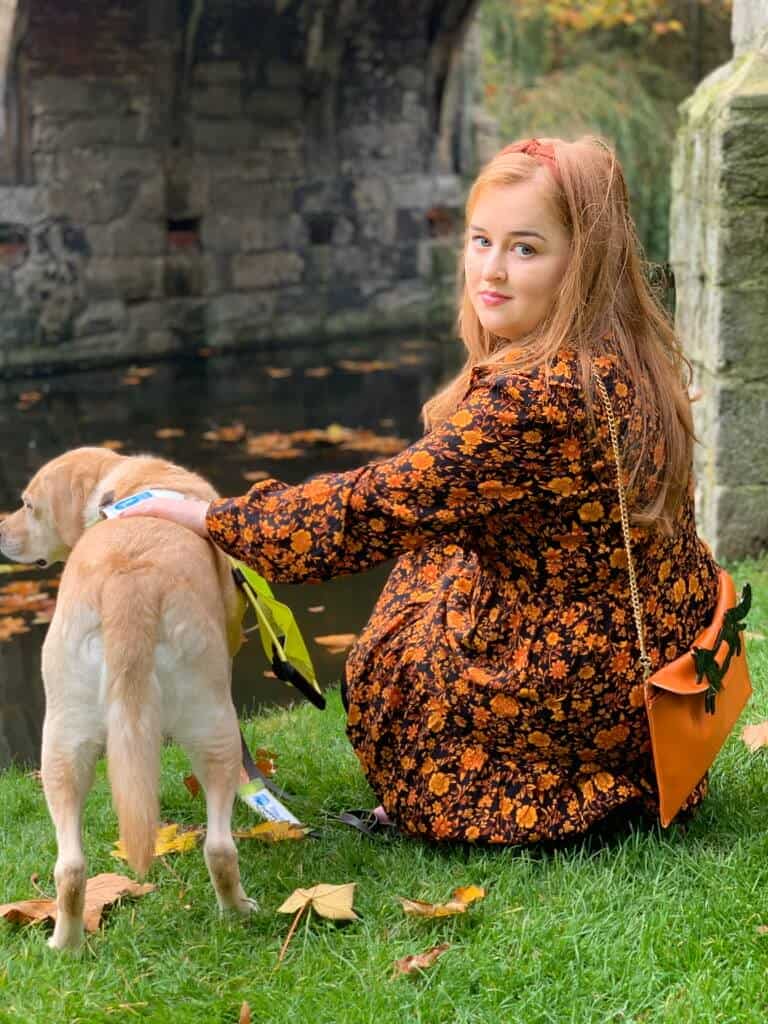
Emily Davison (26) is a London based blogger, journalist, disability advocate and content creator. She runs a blog known as Fashioneyesta which she began in 2012 and is also a passionate disability campaigner. Being disabled herself, she particularly focuses on matters of accessibility and disability equality.
Connect with Emily
Blog: https://fashioneyesta.com
YouTube: https://www.youtube.com/user/fashioneyesta
Instagram: https://www.instagram.com/fashioneyesta2012/?hl=en
Twitter: https://twitter.com/DavisonEm
Facebook: https://www.facebook.com/Fashioneyesta
Ko-Fi: https://ko-fi.com/A2587HJ